Enabling Multi-Provider Mode
The Problem: Why Can’t You See All Your Trading Accounts?
If you have multiple (prop) trading accounts, you might have noticed that you can’t access them all at once. By default, NinjaTrader is set to Single-Provider Mode, meaning you can only connect to one broker or data provider at a time.
If you need to trade across multiple accounts from different firms, you’ll need to enable Multi-Provider Mode.
The Solution: How to Enable Multi-Provider Mode
- Go to the Settings Menu
- Open NinjaTrader and navigate to Tools > Options.
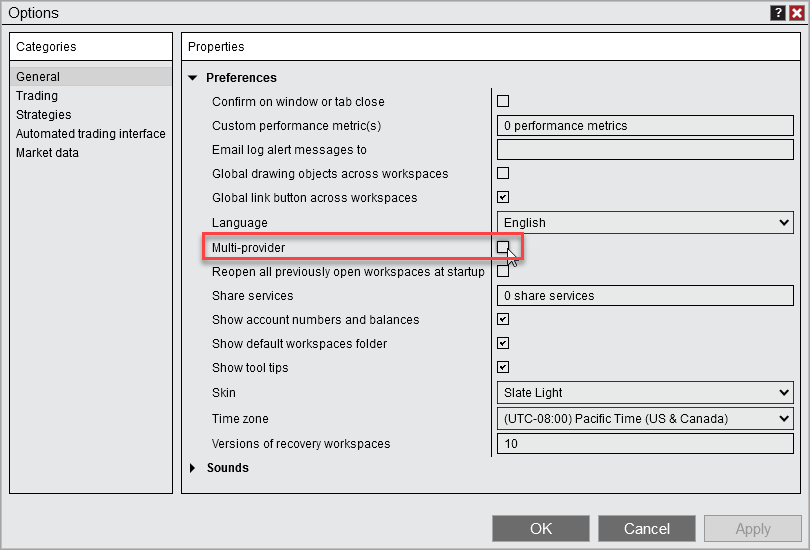
- Enable Multi-Provider Mode
- In the Options menu, locate the Multi-Provider Mode setting.
- Check the box to enable it.
- Restart CrossTrade
- After enabling Multi-Provider Mode, restart the platform to apply the changes.
- Connect to Your Accounts
- Once restarted, go to the Connections menu.
- Click Configure to add your prop firm accounts.
- Any accounts set to Connect on Startup will automatically connect.
What Changes When Multi-Provider Mode Is Enabled?
- You can now connect to multiple trading accounts from different firms at the same time.
- A Global Simulation Mode will be enabled by default to prevent accidental live trades.
- Local simulation accounts will always be available.
- If you previously enabled Server-Side ATMs (Beta), switching to Multi-Provider Mode will revert your settings to Local ATMs (since Server-Side ATMs are only available for the NinjaTrader connection).
Once enabled, you’ll have full access to all your accounts and can trade seamlessly across different providers!