Prop Firm Connection Guide
This guide covers the connection process for NinjaTrader 8 with various prop firms that CrossTrade users commonly work with. While the general process is similar across most firms, there are specific configuration differences that are important to understand.
General Requirements (All Firms)
- Download NinjaTrader 8.1+
- Stable internet connection (use a VPS if needed)
- Active prop firm account (credentials emailed by Firm)
Enable Multi-Provider Mode
- Open NinjaTrader Desktop
- Login with your NinjaTrader credentials
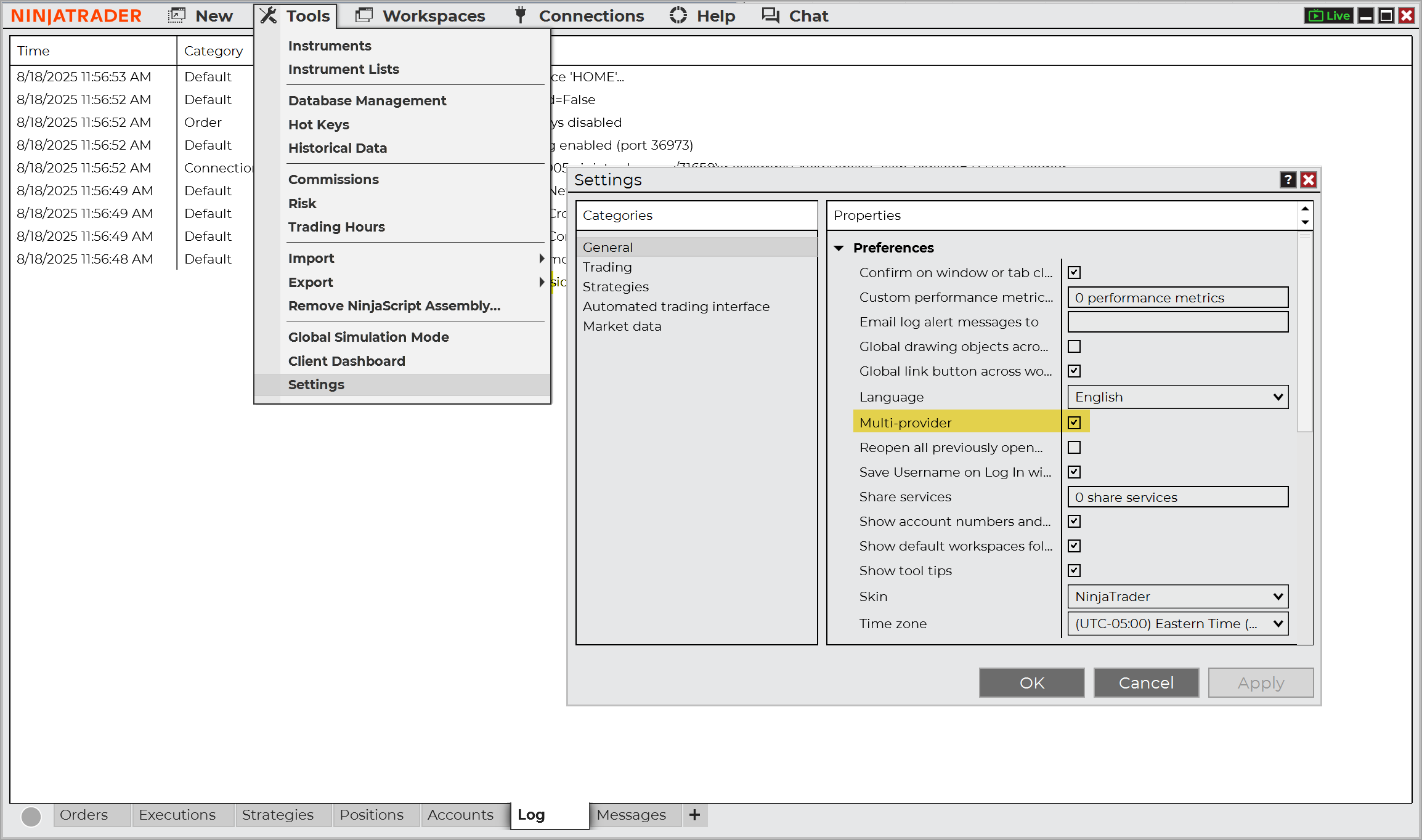
- Go to Tools > Options > General
- Check Multi-provider box
- Click Apply > OK
- Restart NinjaTrader (critical step)
Configure Data Connection
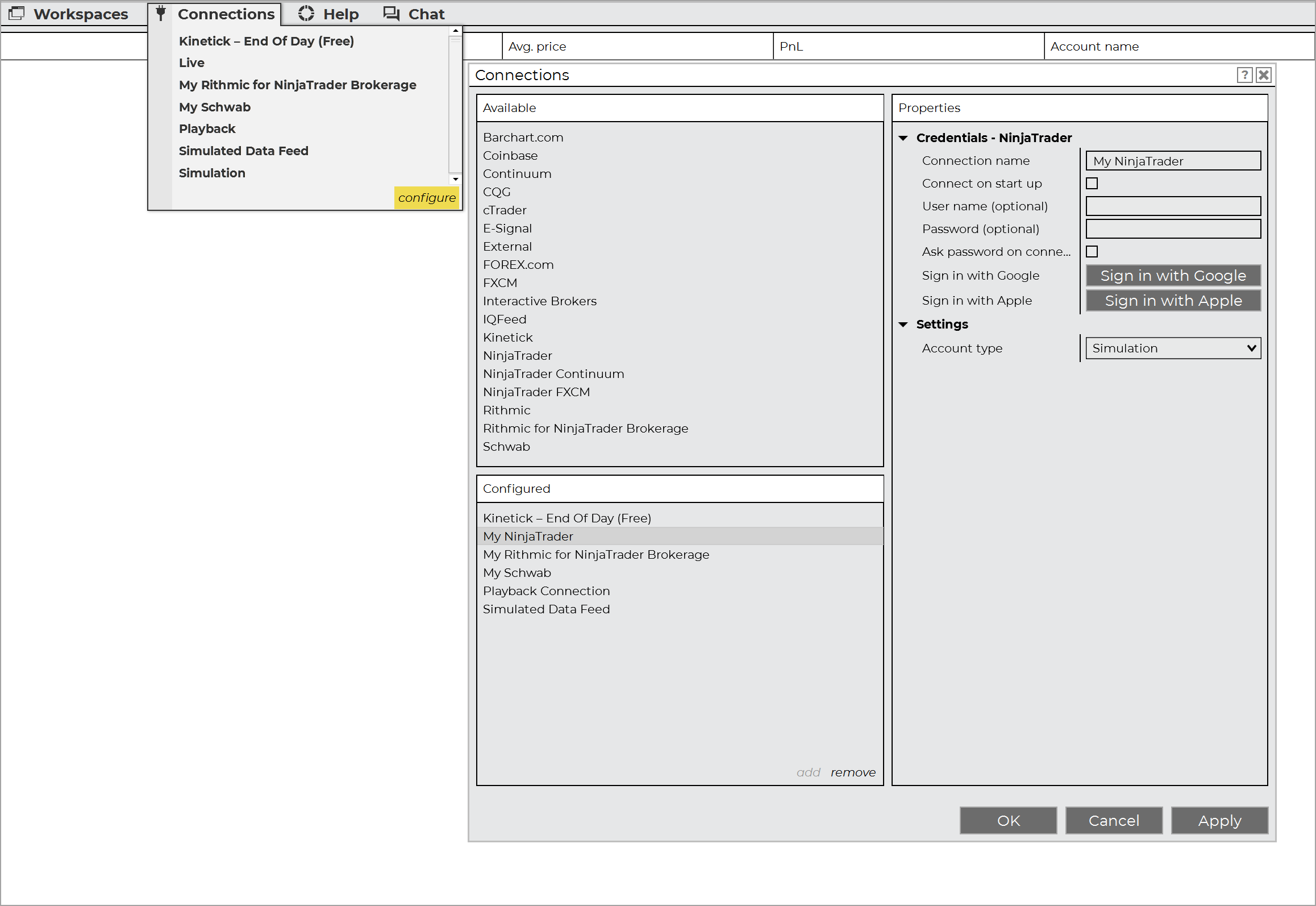
- Go to Connections > Configure
- Select appropriate connection type from "Available" list
- Click Add to move to "Configured" section
- Enter your prop firm credentials
- Configure specific settings (see firm-specific details below)
Firm-Specific Connection Details
🛑 This guide covers the most common prop firms used by CrossTrade users. Connection requirements may change, so always refer to the official prop firm documentation for the most current setup instructions.
Apex Trader Funding
Connection Type: Rithmic for NinjaTrader Brokerage OR NinjaTrader (for Tradovate)
Rithmic Setup:
- Download Apex Rithmic RTrader Pro
- Login to RTrader Pro first with Apex credentials
- In NinjaTrader: Select "Rithmic for NinjaTrader Brokerage"
- System: "Rithmic Paper Trading (Chicago)"
- Account Type: Simulation
- Uncheck "Plug-in mode for market data"
Tradovate Setup:
- First login to trader.tradovate.com with Apex Tradovate credentials
- Sign all required agreements for data activation (wait up to 4 hours)
- In NinjaTrader: Select "NinjaTrader"
- Account Type: Simulation
- Enter your APEX_XXXX username and password
Guide Links:
Bulenox
Connection Type: Rithmic for NinjaTrader Brokerage
Setup:
- Download and setup Rithmic RTrader Pro
- Login to RTrader Pro with Bulenox credentials
- Accept Rithmic agreements
- In NinjaTrader: Select "Rithmic for NinjaTrader Brokerage"
- System: "Rithmic Paper Trading (Chicago)"
- Uncheck "Plug-in mode for market data"
- Rename connection to "Bulenox"
- Disable Global Simulation Mode: Tools > Global Simulation Mode (uncheck)
Guide Link: Bulenox Connection Guide
Take Profit Trader
Connection Type: NinjaTrader (CQG) OR Rithmic for NinjaTrader Brokerage
CQG Setup:
- Select "NinjaTrader" connection
- Account Type: Simulation
- Enter Take Profit Trader CQG credentials
Rithmic Setup:
- Download RTrader Pro
- Connect to RTrader Pro first
- Select "Rithmic for NinjaTrader Brokerage"
- System: "Rithmic Paper Trading (Chicago)"
Note: Take Profit Trader offers both CQG and Rithmic data feeds. Choose based on your account type.
Guide Link: Take Profit Trader Connection Instructions
BluSky Trading Company
Connection Type: Rithmic for NinjaTrader Brokerage
Setup:
- Download Rithmic RTrader Pro
- Login to RTrader Pro with BluSky credentials
- Minimize RTrader Pro (keep running)
- In NinjaTrader: Select "Rithmic for NinjaTrader Brokerage"
- Enter BluSky credentials
- System: "Rithmic Paper Trading (Chicago)"
- Account Type: Simulation
Guide Link: BluSky Connection Guide
Earn2Trade
Connection Type: Rithmic for NinjaTrader Brokerage
Setup:
- Complete account setup in Earn2Trade dashboard (select exchanges)
- Download RTrader Pro
- Login to RTrader Pro with Rithmic credentials from E2T email
- Ensure Market Data is OFF and Plugin mode is OFF in RTrader
- Gateway: Chicago Area
- In NinjaTrader: Select "Rithmic for NinjaTrader Brokerage"
- System: "Rithmic Paper Trading - Chicago gateway"
- Enter Rithmic credentials (not Earn2Trade login credentials)
Guide Link: Earn2Trade Rithmic Connection Guide
Tradeify
Connection Type: NinjaTrader (Tradovate)
Setup:
- First login to trader.tradovate.com with Tradeify credentials
- Sign Non-Professional Data Agreement (critical for live data)
- Wait up to 15 minutes for data activation
- In NinjaTrader: Select "NinjaTrader"
- Account Type: Simulation
- Enter Tradeify Tradovate credentials
- Enable "multi provider" in NinjaTrader options if connection not visible
Guide Link: Tradeify NinjaTrader Guide
My Funded Futures
Connection Type: NinjaTrader (Tradovate)
Setup:
- Login to trader.tradovate.com with MFFU credentials
- Sign live market data agreement
- In NinjaTrader: Select "NinjaTrader"
- Enter MFFU credentials from dashboard
- Account Type: Simulation
- Connection should show green light when successful
Guide Link: My Funded Futures NinjaTrader Instructions
TradeDay
Connection Type: NinjaTrader (Tradovate/CQG)
Setup:
- Login to Tradovate via TradeDay credentials first
- Sign market data agreement form in Tradovate
- Ensure Order Flow tools are enabled in Tradovate settings
- In NinjaTrader: Select "NinjaTrader"
- Account Type: Simulation (for evaluation) or Live (for funded accounts)
- Enter TradeDay credentials
Guide Links:
Important Connection Notes
Data Feed Types
- Rithmic: Most common for prop firms (Apex, Bulenox, BluSky, Earn2Trade)
- Tradovate/CQG: Used by some firms (Apex Tradovate accounts, My Funded Futures, TradeDay, Tradeify)
License Requirements
- NinjaTrader 8.1+: No license key required for most prop firm connections
- NinjaTrader 8.0: May require importing license key from prop firm
- Multi-Provider: Must be enabled to connect to prop firm accounts alongside personal accounts
Connection Limitations
- Only ONE Rithmic connection can be active at a time
- Multiple Tradovate connections can run simultaneously
- To switch between Rithmic prop firms: Disconnect → Close NinjaTrader → Reopen → Connect to new firm
Troubleshooting Tips
- Always start RTrader Pro before NinjaTrader (for Rithmic connections)
- Sign all data agreements in web platforms first
- Wait for data activation (can take hours; but usually only several minutes)
- Check firewall exceptions for NinjaTrader and prop firm software
- Restart NinjaTrader after enabling Multi-Provider mode
- Use exact credentials - avoid copying extra spaces
Connection Status 🟢
- Green circle: Successfully connected and ready to trade
- Yellow circle: Attempting connection or temporary issue
- Red circle: Connection failed - check credentials and internet
- No circle/Transparent: Completely disconnected
💡BONUS: If you plan to trade with NT8, you should learn how to optimize it for the best experience... Read More